
How to Use Libby
A simple guide for audiobook lovers

Dear Reader,
One of my biggest pet peeves as a librarian and audiobook appreciator is when people use Audible for audiobooks instead of Libby, a free library audiobook app. Not only does Audible cost $8 a month as of this writing (at the cheapest plan) compared to Libby’s forever price of ZERO DOLLARS, but Audible is also owned by Amazon and in this house we don’t like giving our dollars to Jeff Bezos just so he can underpay his employees.
Even though Libby is clearly superior as an app and an experience, I often hear people complain that the books they want to read or listen to aren’t available on Libby when they want them, or that they just don’t want to learn a new app interface. Because I am a chronic Fixer, I thought I’d write a little guide to using Libby so that you can feel comfortable fully embracing this glorious free audiobook app.
Getting Started:
Downloading Libby is easy. It’s available on Google Play and the App Store for FREE. If you don’t want to download the app you can also use the web version at Libbyapp.com.
When you download Libby, you will have to find your library and log in. The app will prompt you to search for your library and then log in with your card number and PIN.
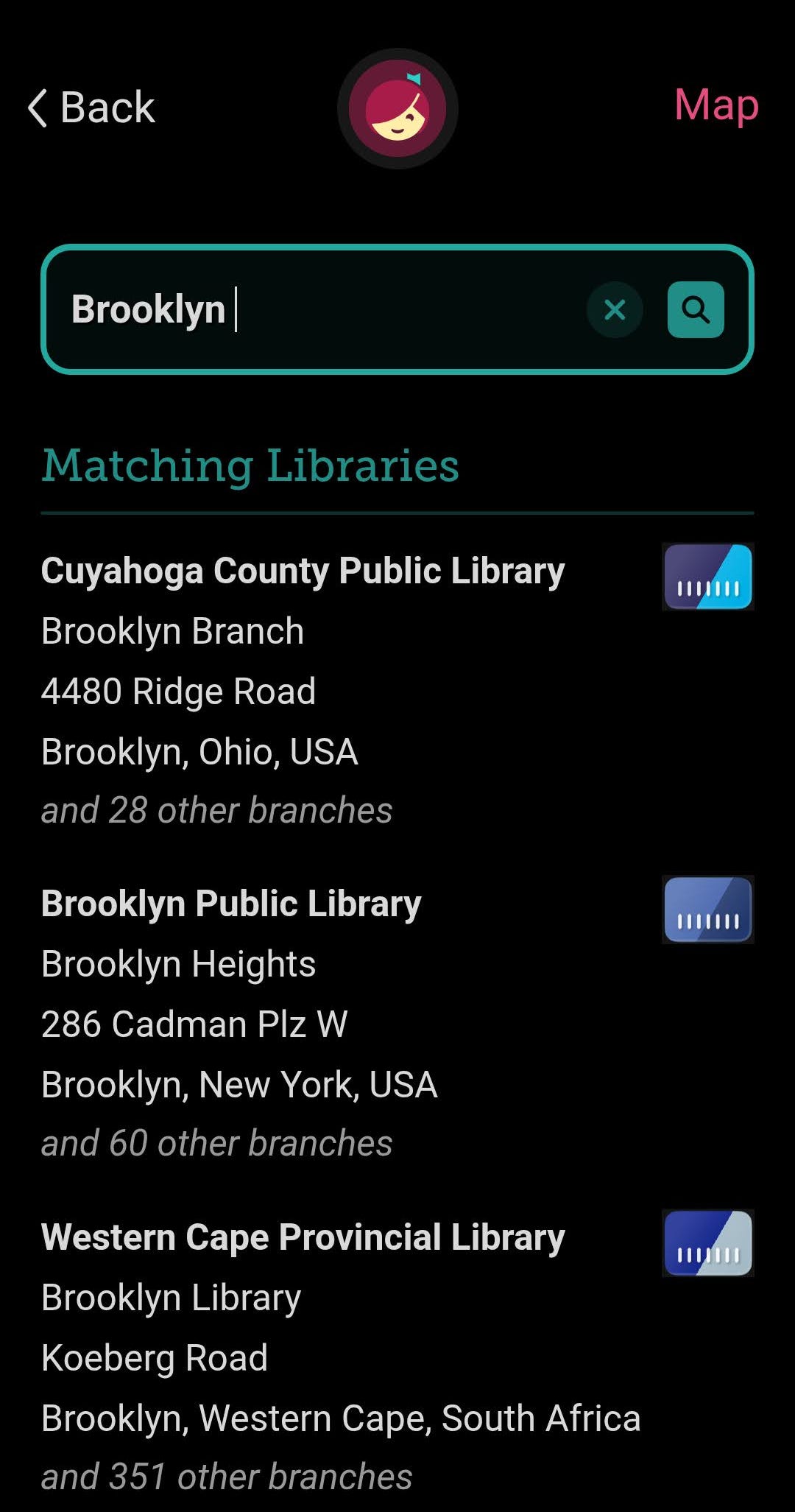
If you don’t know your card number or PIN, you should be able to stop by your library or call them to confirm and reset your login info. If you have an online account with your library, you may also be able to use a password reset function to do it yourself. If you don’t have a card at your local library, you may be able to make an online card through Libby without ever stepping in the door, using the “I would like a card” button when you’re prompted to log in. But also, if you don’t have a card at your local library, what are you doing??? Go pay them a visit and see what they have to offer.
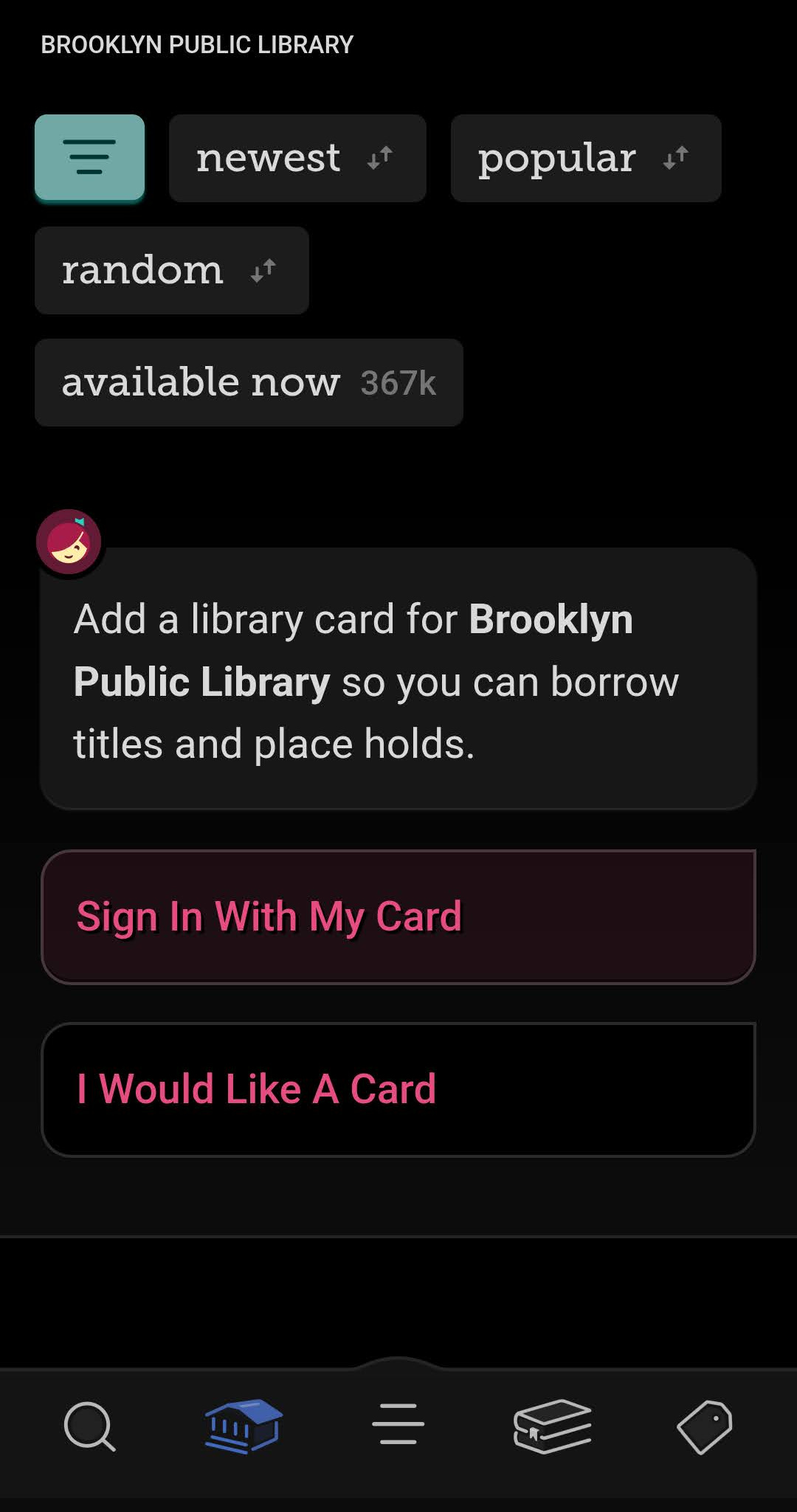
Using Libby
Navigating the basics of Libby is, in my opinion, fairly intuitive. Along the bottom of the screen are five menu options.
The leftmost, the magnifying glass, is the search function. Here you can type in the name of a book, author, or series and Libby will display all the matching results. If the book is available it will show the option to “borrow” and if it’s unavailable it will show the option to “place hold.” Below this is an option to read a sample of the book, in case you want to try the first chapter or so to see if you like it, and then an option to save the book to a list for later.
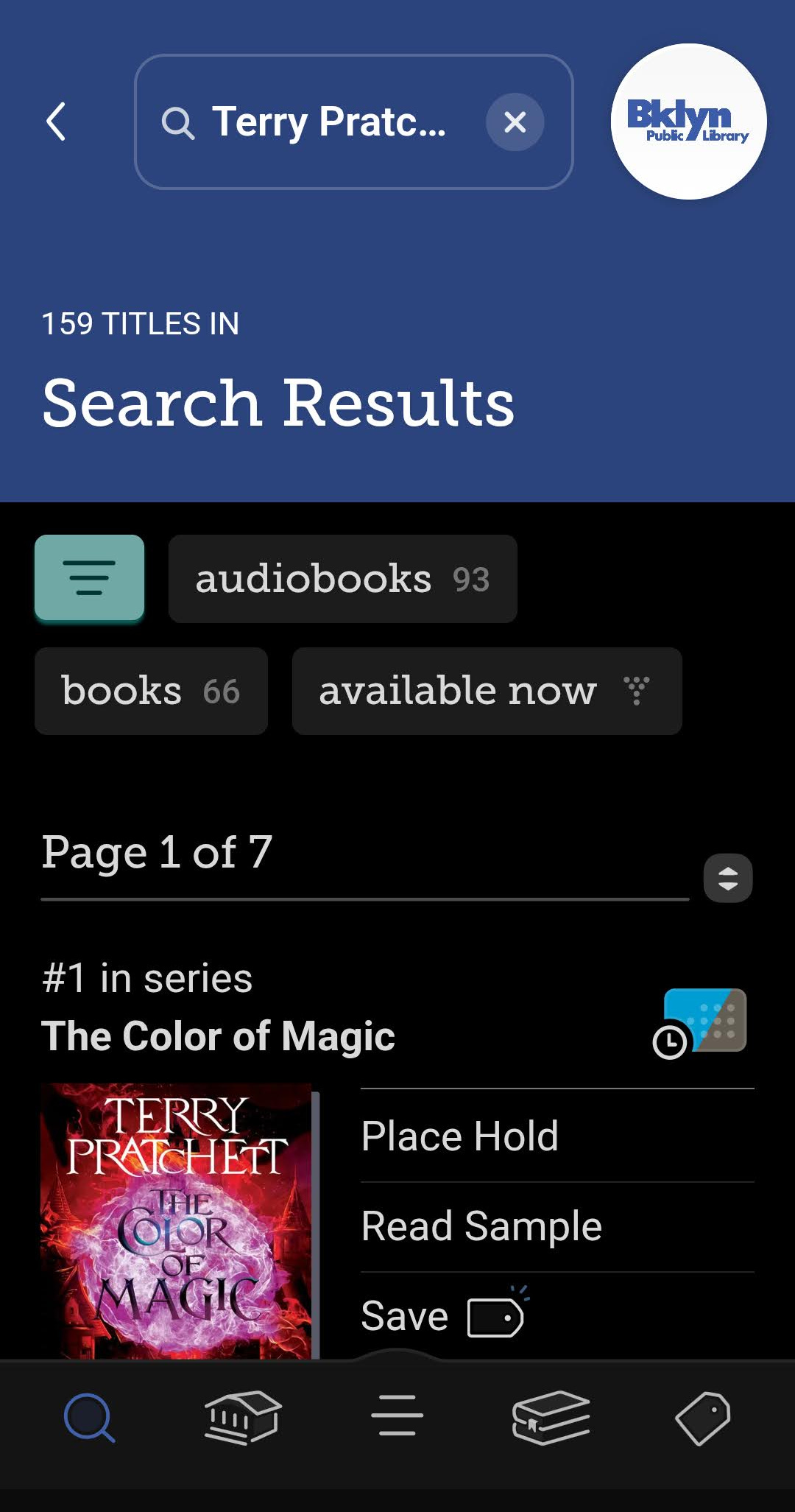
If they don’t have the book you’re looking for, some libraries will display an image of the book with a “notify me” option that will tell your library that you’re interested in reading the book and will give you a notification if they acquire any copies.
I know some people have told me they struggle to tell the difference between ebooks and audiobooks. All audiobooks will display a square version of the cover with a graphic of a pair of earbuds and the listening time of the audiobook beneath the cover.
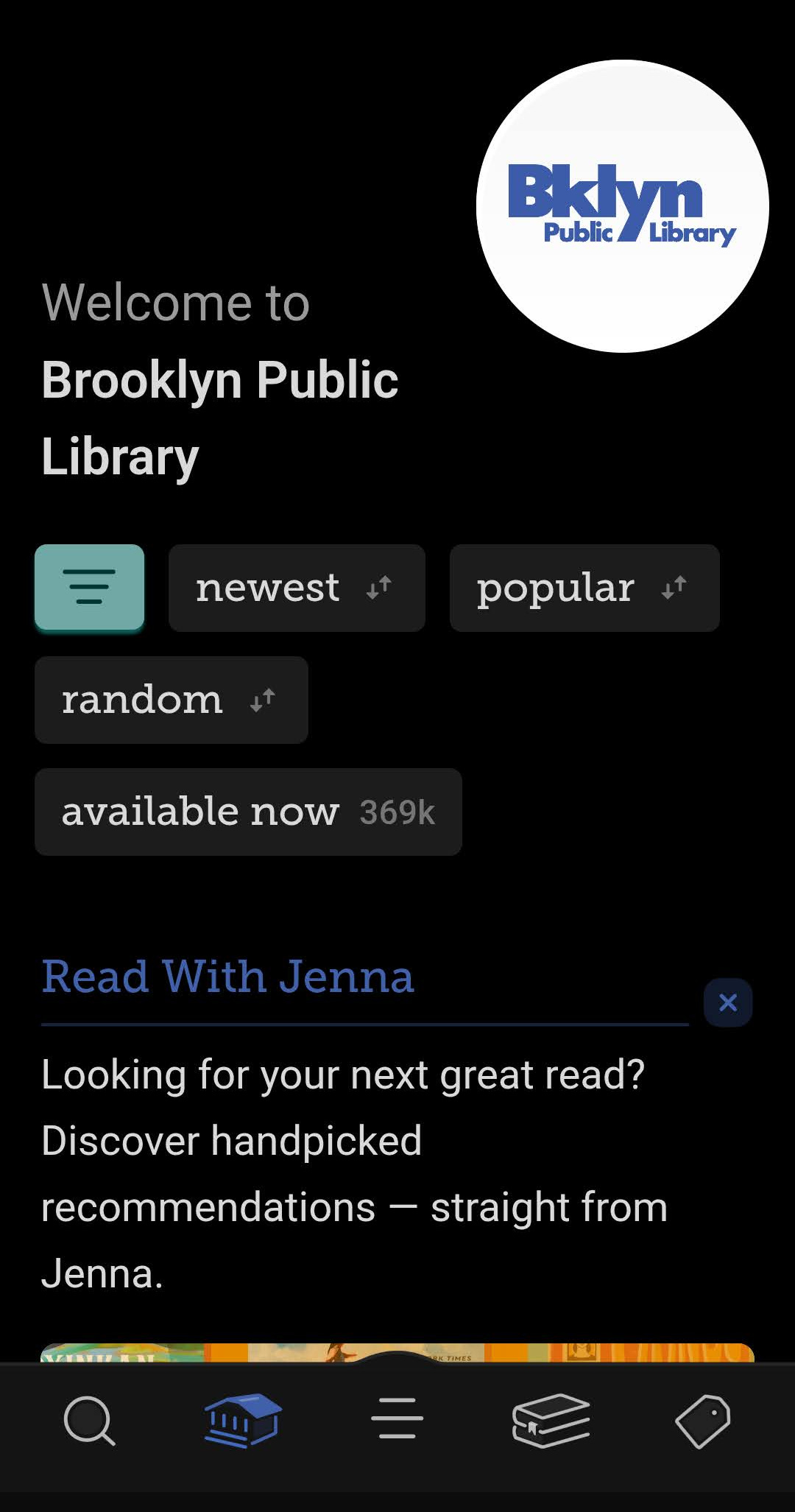
Second from the left on the bottom menu is the home page, which allows you to browse your library’s collection and look at curated lists created by Libby and/or your library. The homepage is also a great place to find magazines, a Libby offering that I often forget about unless I’m browsing here.
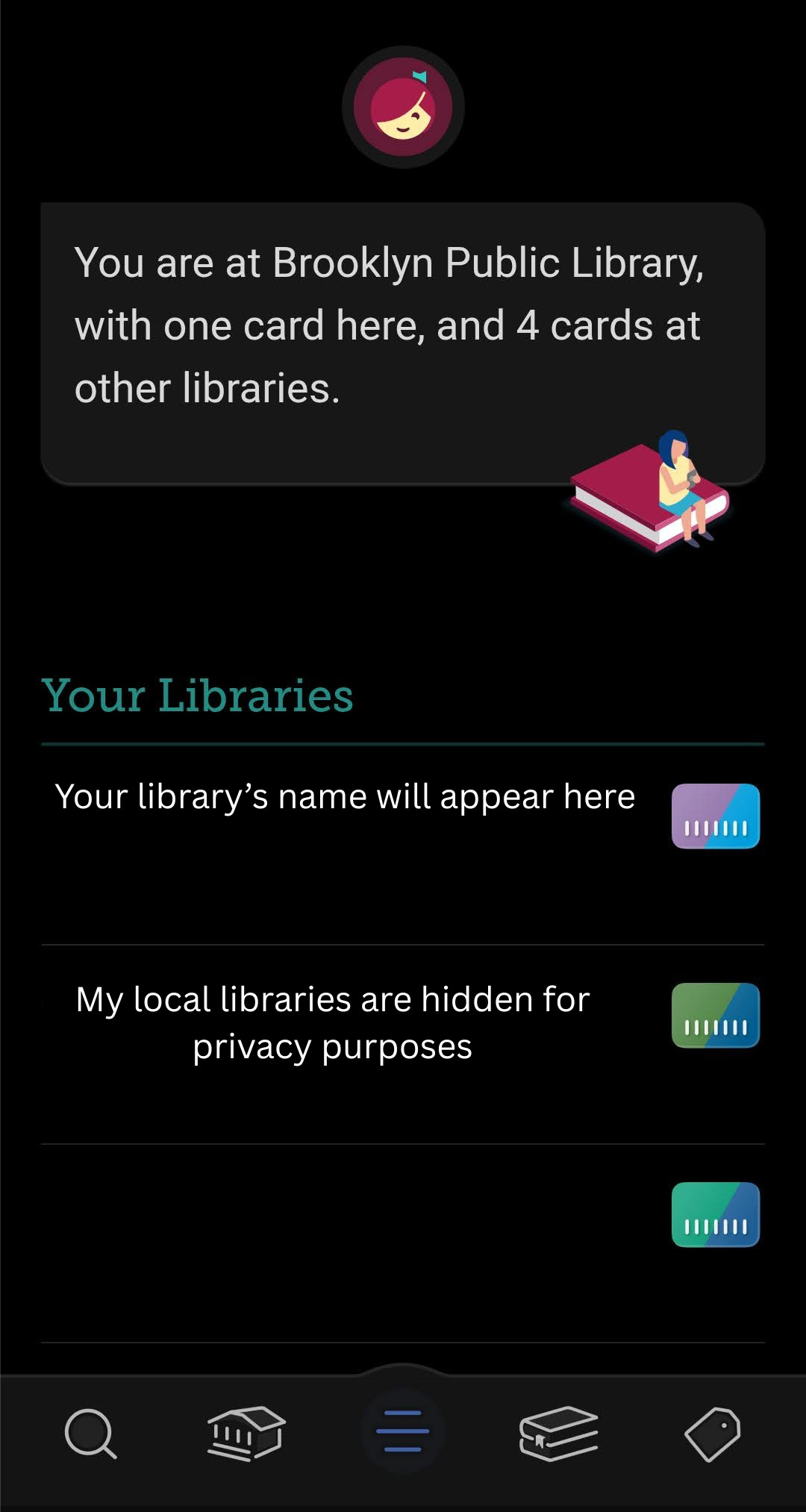
The three lines or hamburger menu in the middle of the bottom menu will show the list of libraries you have access to and allow you to manage them. This is also where you’ll find settings, including accessibility settings and content controls.
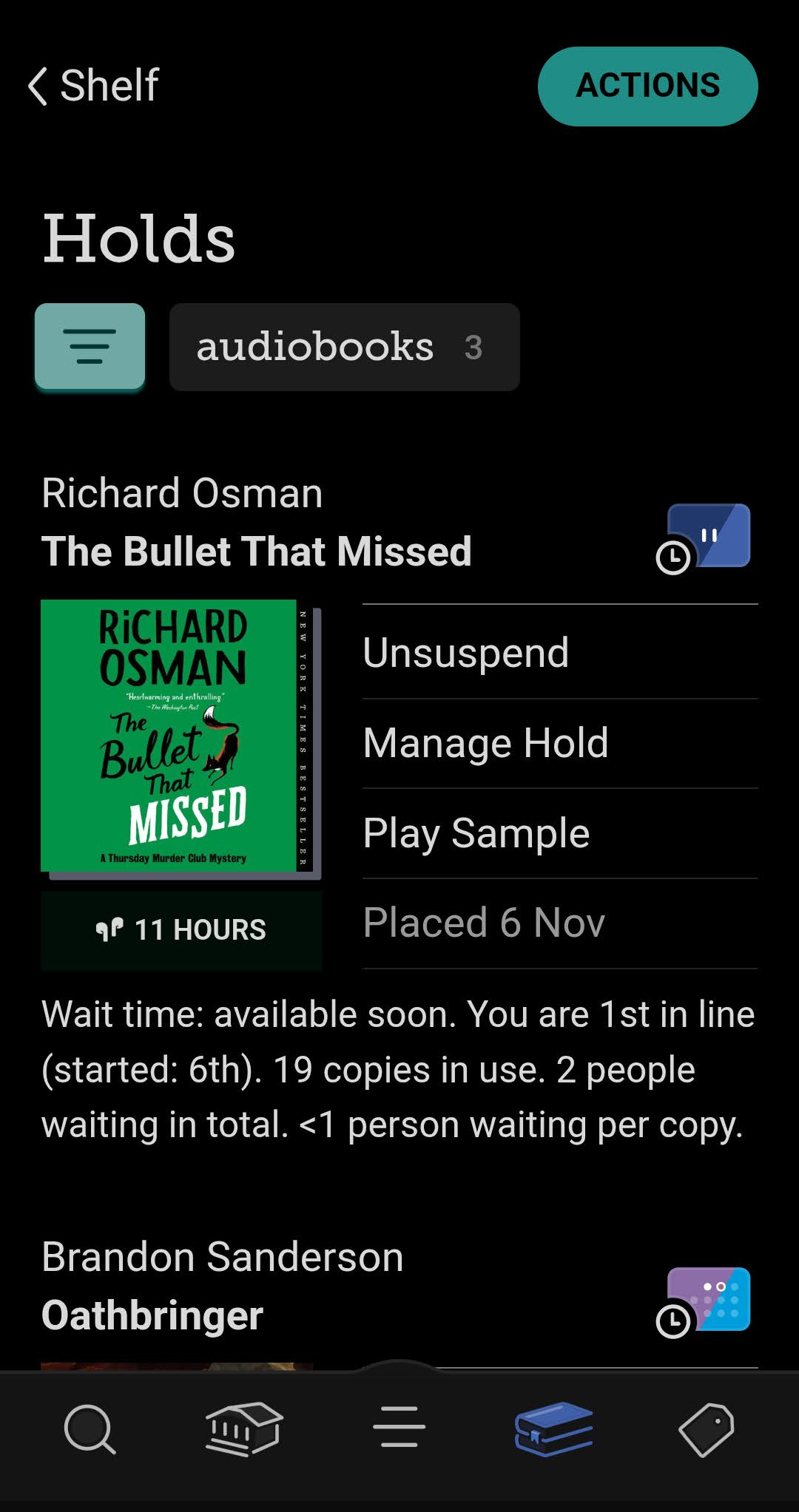
Second from the right on the bottom menu, the stack of books, is your shelf. Here you can access the books you’ve checked out and manage your loan status (return early, renew, etc). From your shelf you can also access your holds and cancel or suspend holds as needed. Suspending holds will keep your place in line but allow other users to borrow them until you’re ready. Once you’re ready for the book, you can unsuspend your hold and it will be delivered to you when the next person has finished it.
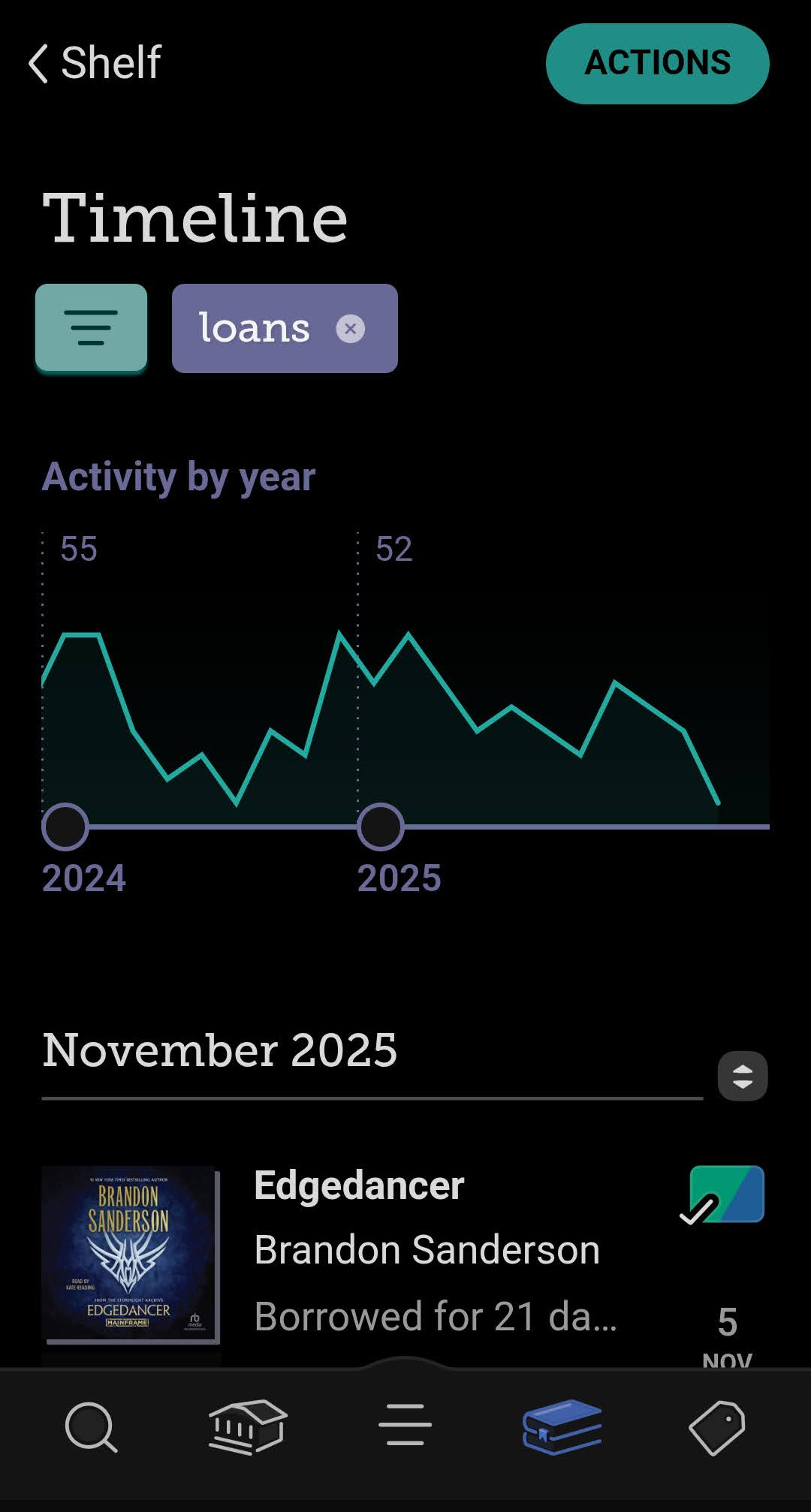
Your shelf also allows you to access your timeline, which displays what titles you’ve checked out and when. (I find the timeline super helpful when I go to update StoryGraph after a while and can’t remember what I’ve read!). This can also be a fun way to compare how many books you read from one year to the next.
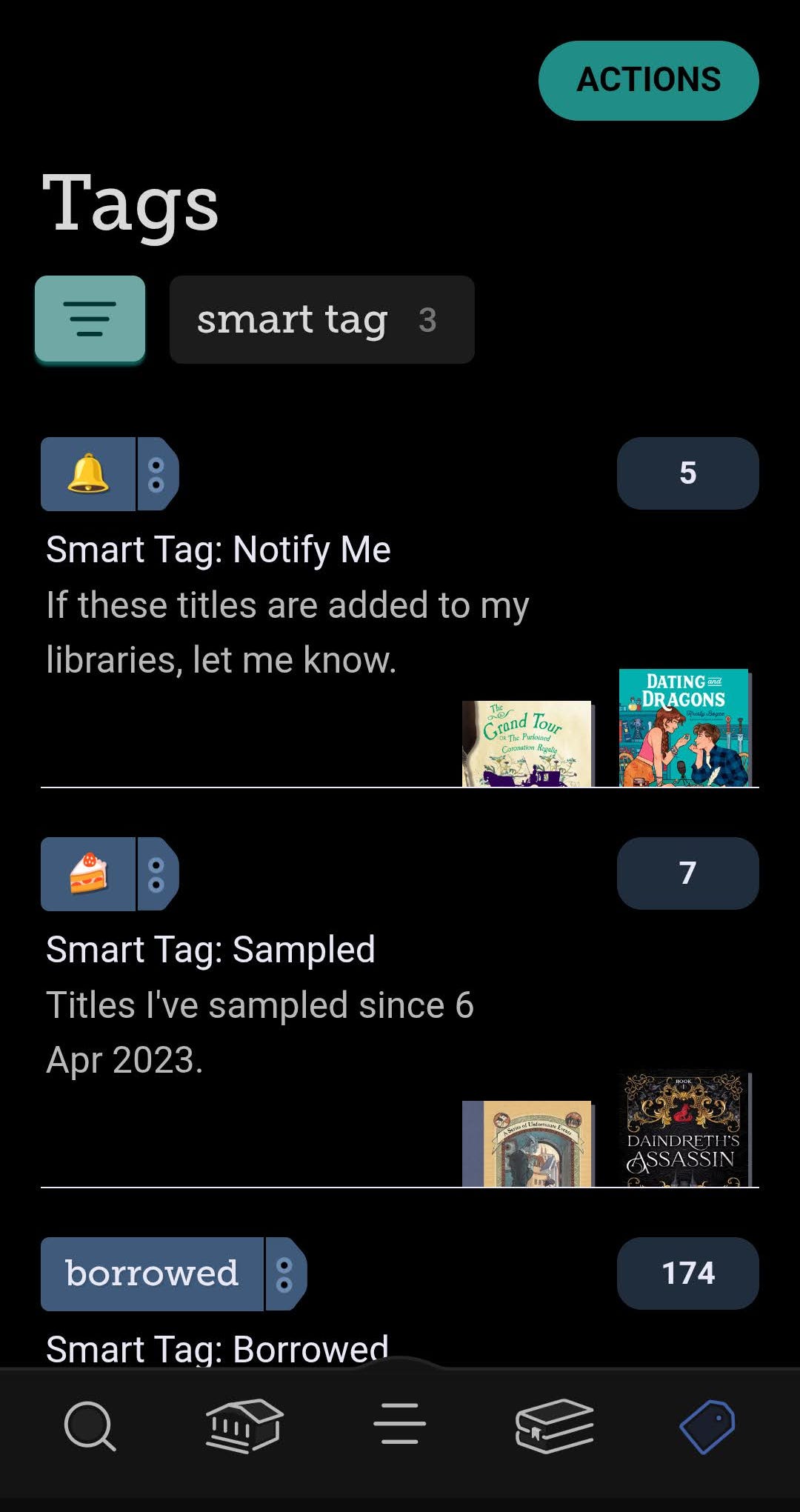
The rightmost option on the bottom menu contains your tags. Libby will automatically tag titles that you’ve borrowed, sampled, or clicked the “notify me” option for. You can create additional tags here for whatever purposes you like: books to-read, favorite books, books that you hated so much you want to avoid the author forever, books you think your niece might like, etc. Honestly, I don’t use this function very much, but I know some folks find it incredibly useful for organizing their reading.
Making the Most out of Libby
Now that you’ve gotten started navigating Libby, how do you get the most out of it? There are a couple of strategies I use to make sure I always have an audiobook to listen to and that I get around to the popular exciting ones I want sooner or later. The tactics I use are a) add as many libraries as possible b) place a truly unholy number of holds and c) make heavy use of the filtered search function. Let’s talk about each of these individually.
Adding Libraries
The number one thing that will expand the options you have available to you with Libby is adding more library cards. Your library likely has many titles available on Libby, but there’s still a limit to how much you can access through one library. Adding other library cards will allow you to search between the collections of multiple libraries, increasing the array of books available to you, and the likelihood that the one you want to read right now isn’t checked out.
Adding libraries is simple—once you’ve logged in with your home library card, click the three line “hamburger menu” on the bottom of the screen to display your libraries and then use the “Add Library” function. You’ll then log in with your new library credentials just as you did with your home library card.
But how do you get access to cards for these other libraries in the first place? Some libraries may have programs where they partner with other nearby library systems to give their patrons access to books from each other’s collections. (My library system actually does this, and it’s great. If you live in my county and don’t know how to set up the partner systems, get in touch and I’ll happily help you.) You can ask your library if they have any programs like this.
Some libraries also allow you to make an online library card to access Libby even if you don’t live in their district—thereby securing my gratitude and admiration forever. Both NYPL and Brooklyn Public Library allow New York State residents to make digital cards to use Libby. (So if you live in NY state, get on that!) This article has a thorough list of which libraries will let you make a nonresident card depending on your state. (There are nonresident card options for folks outside the states as well, but the specifics depend on your county.)
If you’re willing to pay a nonresident library card fee, that will expand your pool of options. I know paying for a card kind of defeats the purpose of a free library app, and for some folks it’s not even possible. I get it. I probably wouldn’t do it myself (unless we went into another pandemic lockdown and my need for audiobooks became really desperate), but if you have money to spend on audiobook subscriptions, a public library is probably the best place to spend it. Those dollars will go back into the library’s community—through collection, programs, and other services. And for what it’s worth, most of the fees I’ve seen for this are less than $75 a year, which still works out to less than Audible’s $8 a month ($75/year is $6.25/month in case you don’t feel like doing the math). So if you think Audible is a good deal, it might be time to reconsider.
Still feel like you’re having a hard time getting the books you want? Let’s talk hold strategy.
Placing Holds
A new book by your favorite author just came out, and you can’t wait to listen to the fantastic narrator read it on audio while you bake cookies and then eat cookies and then lie on the couch with your hands resting on your poor stomach. Smashing, a perfect day. The only problem is that your favorite author also happens to be the favorite author of about 500,000 other people. Honestly, whether you’re placing a hold on a book at the library in person or online this is still going to be a problem (gosh darn it why does your favorite author have to be so talented and universally beloved??), but there are some strategies you can use to ensure you get to read the books you’re interested in eventually.
1) Place the hold as soon as you think of it.
I get that there’s only so much you can do to make yourself remember early to place a hold on a book you want to read, but it will really help you get those popular titles sooner. I sometimes put events on my phone calendar for the release day of a book I’m looking forward to so I can remember to put a hold on it online or in person (or to order a copy for my library if it’s YA or middle grade.) For books that aren’t new but are always wildly popular, just stop and place the hold on Libby when you think of the book. (Right now, maybe? You can pause reading this, I don’t mind.) Don’t worry if you’re busy reading other things now, you can always suspend the hold when it comes in. If it’s a series, go ahead and put a hold on the next book or two as well, it doesn’t hurt.
2) Place holds widely
If you’ve read this far, you’re probably someone who has a lengthy to-be-read list. Put it to good use with your Libby holds. Don’t just place one hold on the next book on your TBR, place holds on the next five or six and let fate decide what order you’re going to read them in. Honestly, needing a new audiobook and placing holds on Libby that deliver at a random time has gotten me to a lot of books I’d been meaning to read for years. Again, if too many holds become available at once or you’re not ready for something when it comes in, you can just suspend your hold until later.
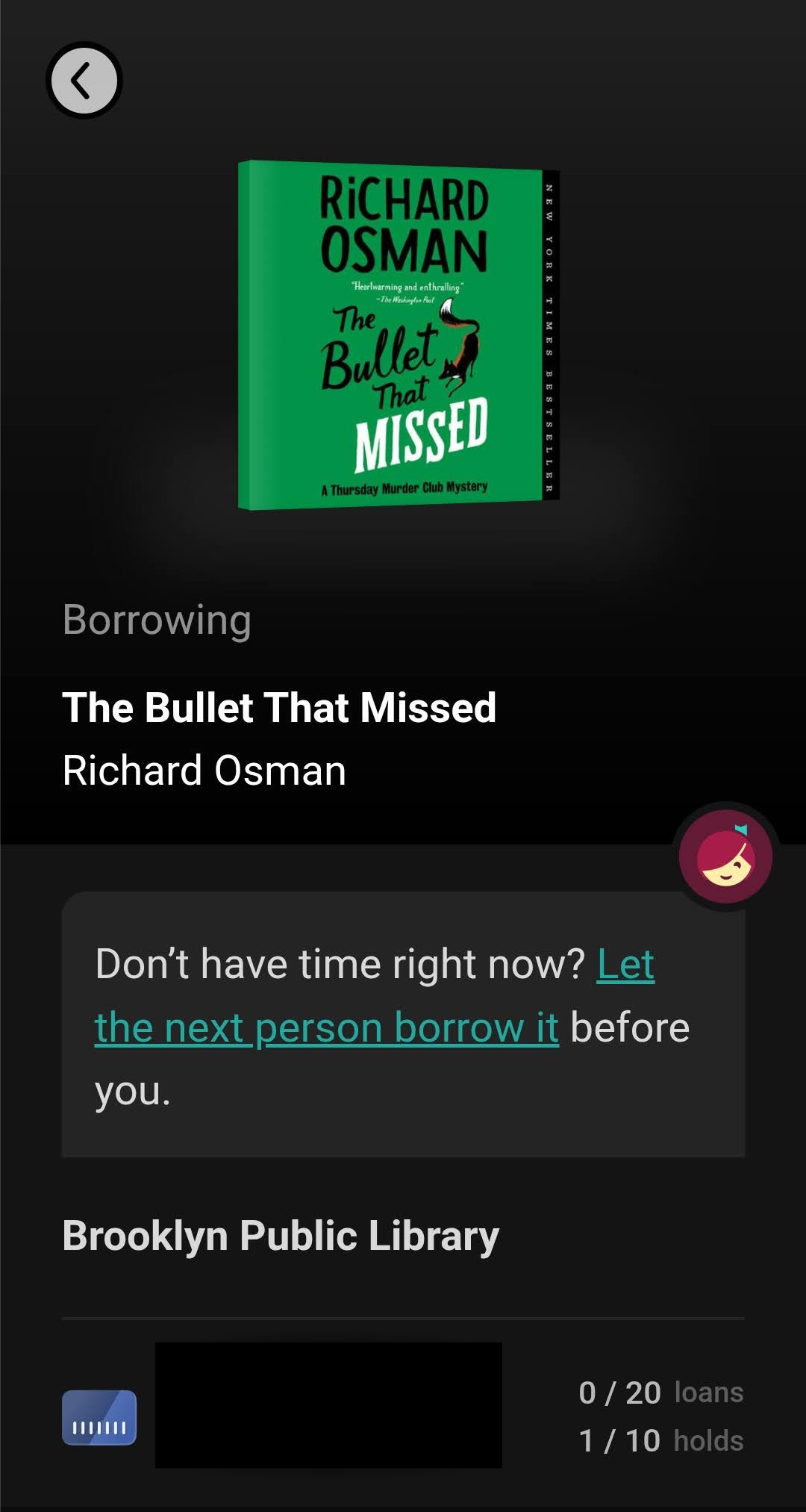
Still don’t have any holds in and need something to read? Let’s talk about a quality filtered search.
Filtered Searches
In my opinion, one of the great joys of libraries and independent bookshops is browsing. There’s something deeply enjoyable about going in without anything specific in mind and just moseying through the shelves until you find something that strikes you. Just because Libby is an app doesn’t mean you can’t browse it as well. Anytime I need an audiobook and I don’t have a hold ready, I open the home page and use a filtered search to browse until I see something I like. To browse this way, go to your home page (or the search function) and then click the three lines hamburger menu under “Catalog Filters” to see the entire array of filter options. I always click “audiobooks,” “available now,” and “English” and then fill in the rest based on what I’m in the mood for.
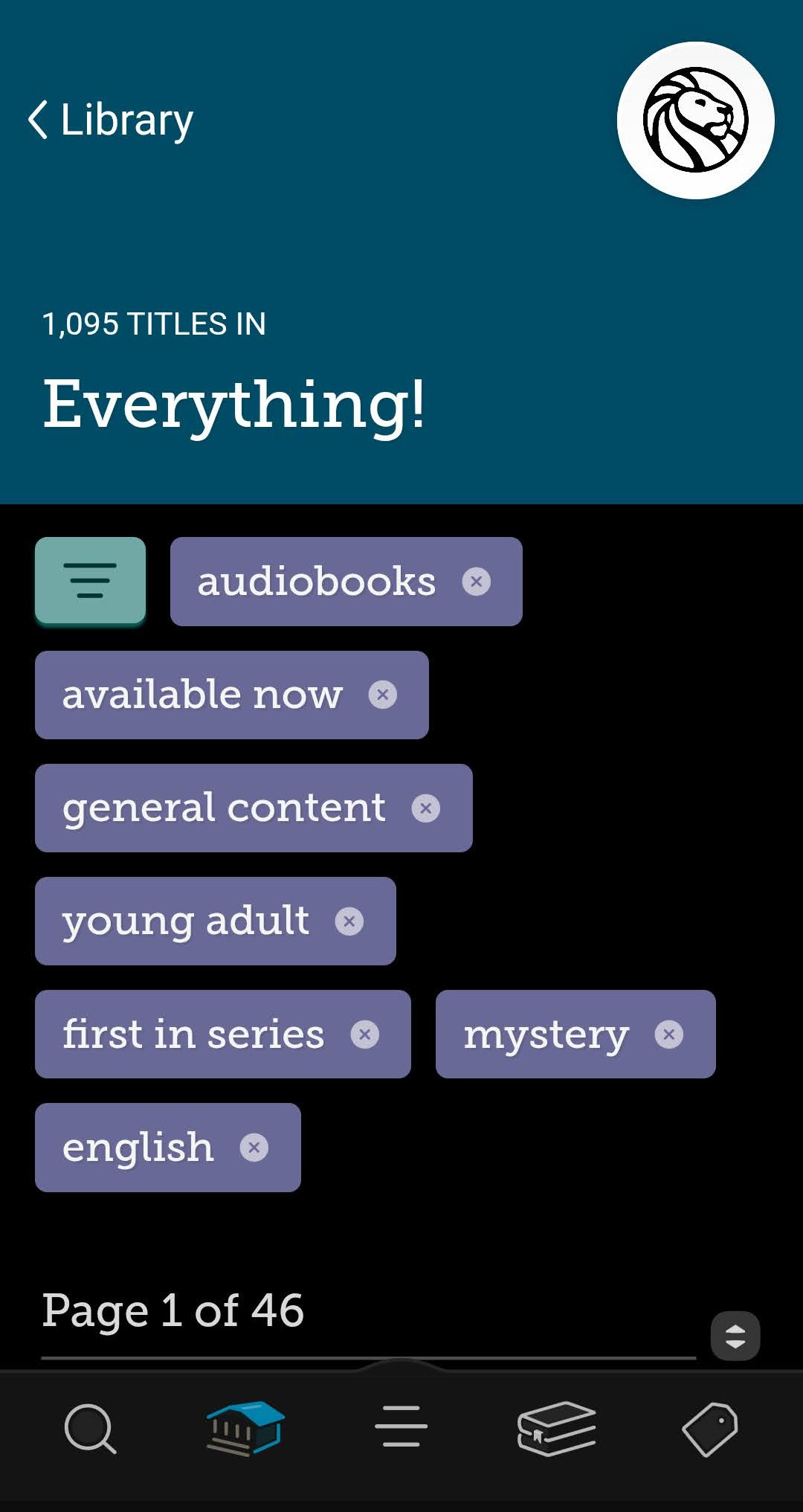
You can filter for the age rating, the genre, and the date the book was added. You can also choose an option to only have books that are standalone or the first in a series displayed, which is great for when you’re looking for something to read right away and don’t want to jump in with book three. I’ve always been able to find something I like this way—often books I would never have heard of or thought to read otherwise.
Honestly, as simple as it is, I think this is some of Libby’s most powerful functionality. It allows the open-endedness of browsing but with parameters that limit your search to books you’re reasonably likely to enjoy. And if you don’t like it, you can always return it right away and go back to your filtered search for something more to your taste—after all, it’s not like you paid for it 😉
Final Secret Tip
It’s possible I shouldn’t be sharing this tip, BUT just between you and me, reader, if you’re reading a title from Libby that’s about to expire and be automatically returned to the library and you have just a little bit left, you can put your phone into airplane mode and it won’t return the title until you turn it back off. Just a little tip for when you have 90 minutes of an audiobook left and it’s going to return in 30.
Well, reader, I hope this guide helps make Libby easier and more approachable for you! There’s a whole beautiful world of digital resources out there for you to enjoy, with a lot of other cool functionality I wasn’t able to cover in this letter but that you can discover for yourself. I hope you can find an absolutely delicious ebook to read on the train or a fantastically performed audiobook to listen to while you cook,
With all my love from the library,
Ally